Installation
- 1Download the V5.95 installerGo to the Download page → click “Download” (~713 MB / 680 MiB)
- 2Run installerDouble-click Setup.exe → Run as administrator → follow the Wizard to Finish
- 3Launch the appDesktop / Start Menu shortcut → click to open — app starts on the Activation screen
- 4Choose how to accessSign in via Website (for Free / Monthly) or Import license.dat (Yearly / Lifetime)
Sign In
CNC Costify AI supports two authentication methods — choose based on your plan
Sign in via Website
For Free + Monthly — no unlock code or license.dat required; continuous internet is required
- Open the app → click "Connect Google / Web Account"
- Sign up or sign in with Google/email on the website
- Authorize the desktop connection
- The app opens automatically and continuously verifies access with the website
Import License.dat
For Yearly + Lifetime (offline-capable)
- Download license.dat from "My Account"
- Open app → "License" tab
- Click "Import License" → pick file
- System verifies Hardware ID → ready to use
STEP File Workflow
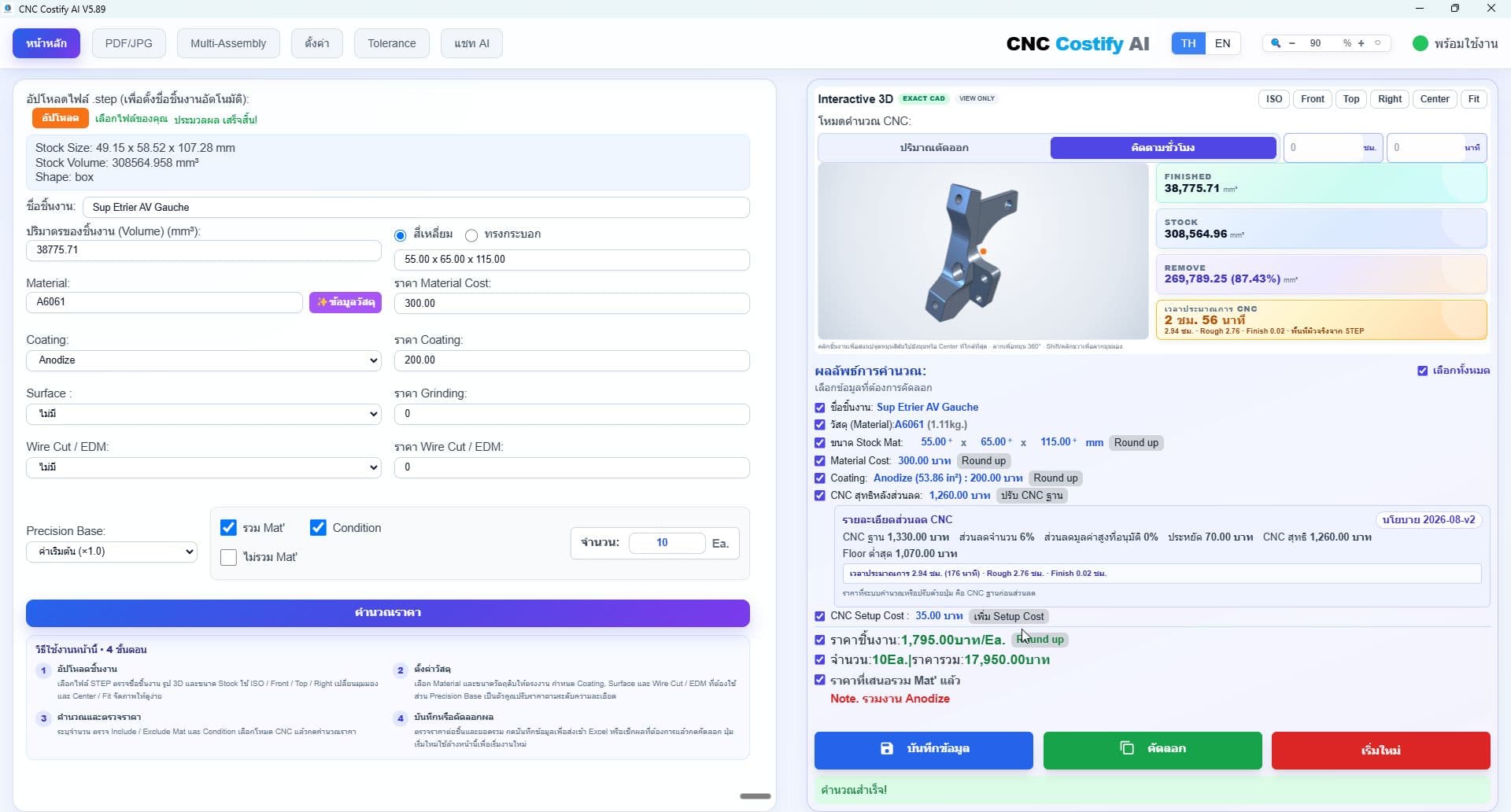
- 1Upload STEPOn "Home" tab → click Upload or drag .step/.stp — OpenCASCADE auto-computes volume
- 2Check Stock SizeSystem suggests Stock Size (Box/Cylinder) — editable in "Stock Mat Size" field
- 3Pick material + precisionChoose a material to load its database price, then select the required Precision. The price recalculates from the selected factor
- 4Add other costsPick Coating, Surface (grinding/sandblast), and Wire Cut / EDM (None / W/C per drawing / EDM per drawing / W/C+EDM per drawing) as needed
- 5Calculate priceReview the cost breakdown. Each Round up control retains its field-specific rule; unit price first rounds up to a multiple of THB 50, then increases by THB 50 on subsequent clicks
- 6SaveClick "Save" → result drops into your Excel file instantly
Multi-Assembly
Use one Assembly STEP or multiple separated Part STEP files. STEP remains the source of truth for finished geometry and occurrence quantity, while PDF/BOM enriches part number, material, stock, precision, and processes for hybrid calculation
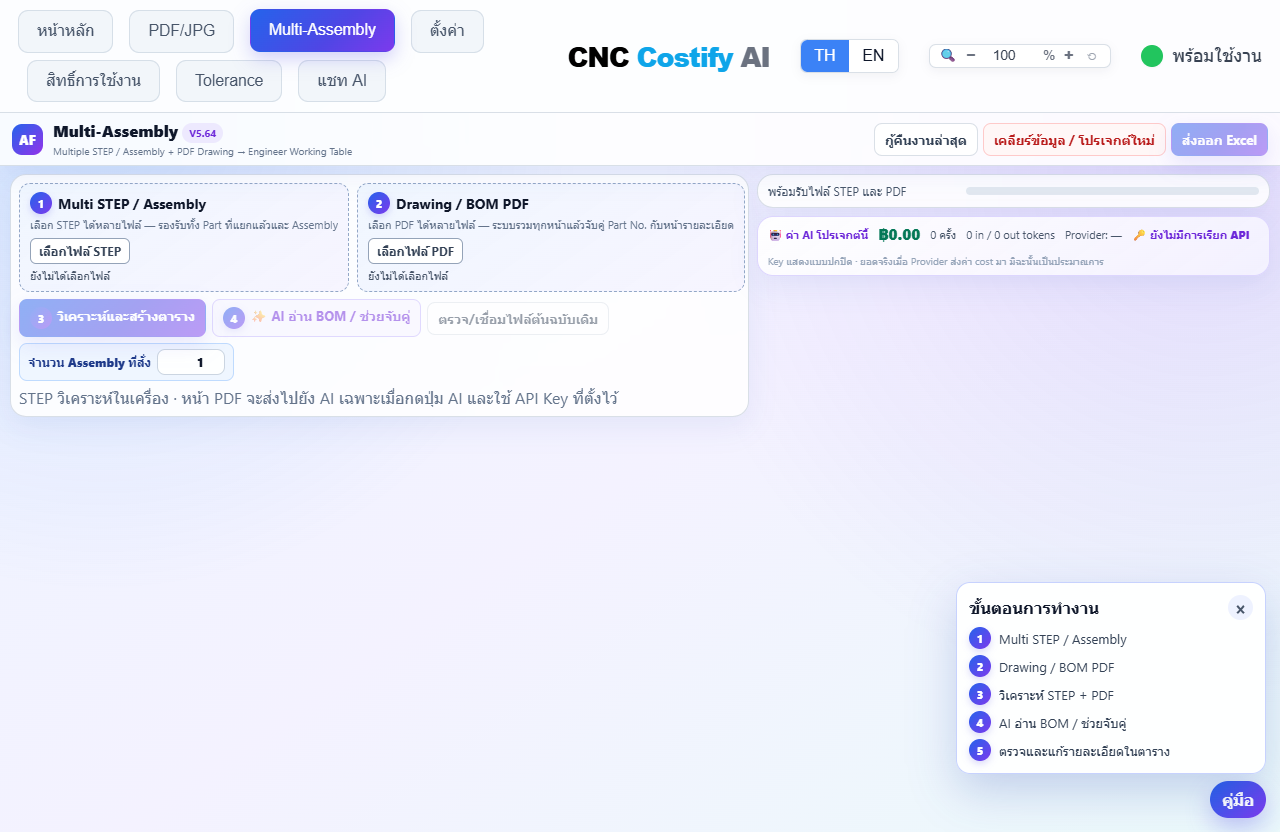
- 1Load Multi STEP / AssemblyChoose multiple .stp/.step files. Both separated Parts and Assemblies are supported, with XCAF geometry kept with its source file
- 2Load Drawing / BOM PDFChoose multiple PDFs. All pages are collected and their part numbers prepared for matching
- 3Analyze STEP + PDFThe app extracts products and occurrences, consolidates duplicate products into one row, and applies the STEP roll-up quantity before PDF/BOM matching
- 4AI reads drawings / BOM / assists matchingAI enriches each matched row with material, drawing stock, precision, coating, surface, Wire Cut / EDM and manufacturing evidence without overwriting STEP finished geometry or quantity, then recalculates removal from validated stock. Step 4 turns gray after at least one real AI request succeeds, even with no new value or unresolved material. Local PDF matching alone or no eligible target does not count as AI completion
- 5Bulk-change types and update prices immediatelyCheck the required rows or select all visible rows, then change them to Manufacture, Purchase, or Ignore. Unit prices and selected totals refresh immediately without a confirmation step
- 6Export the fixed 11-column sheetSelect the required rows and resolve only invalid prices. Excel combines discounted net CNC, setup, and every process in CNC+Process/Ea. and lists the included processes in engineering notes
Example: STEP contains two occurrences while BOM says QTY 1. The row displays STEP 2 · PDF/BOM 1, calculates with QTY 2, keeps the BOM page for review, and still accepts AI-enriched material, precision, and manufacturing controls
PDF/JPG Analysis
Use this for individual drawings: one file or image becomes one editable quotation row. You may queue multiple files, but each is analyzed and shown separately
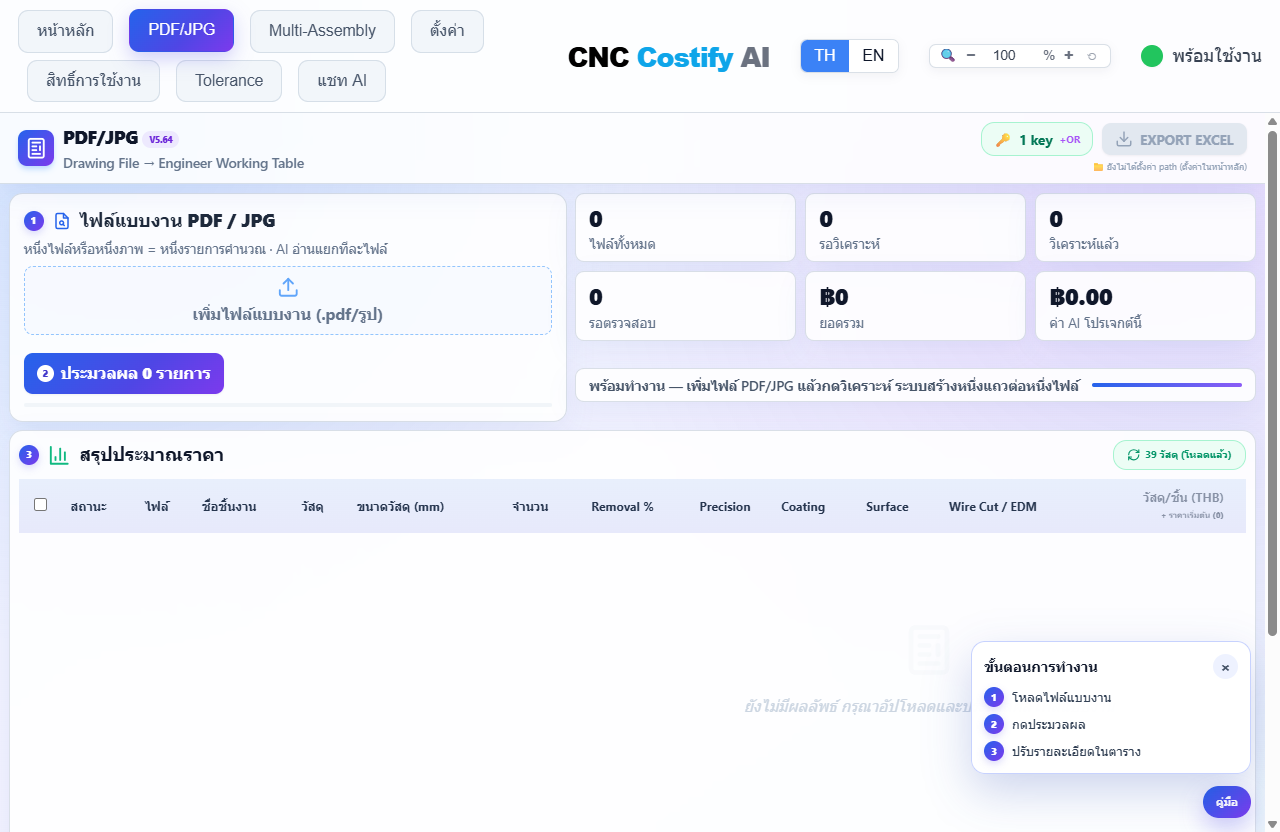
- 1Load and preview drawingsChoose multiple PDF, JPG, or PNG files. Each result row shows its own drawing thumbnail directly below the filename
- 2ProcessAI reads Part No., material, dimensions, quantity, and process notes one file at a time
- 3Review and editQuotes start at actual material cost with Setup excluded. Edit stock, quantity, and processes, then click Mat./Ea. or CNC/Ea. to apply or remove options for selected rows
- 4Review prices and discountsCheck CNC base, quantity discount, savings, net and floor. PDF/JPG and Multi-Assembly automatically apply eligible high-value discounts; Home requires approval. Manual CNC is net
- 5Copy or exportUse Copy on any priced row to send a clean quote summary to LINE, with zero-cost options omitted, or select rows and export them to Excel with embedded images
For a one-page P-001.pdf drawing, AI pre-fills the part number, material, and size. The engineer then confirms the actual grade, stock, and processes before using the calculated quote
Part Price Library
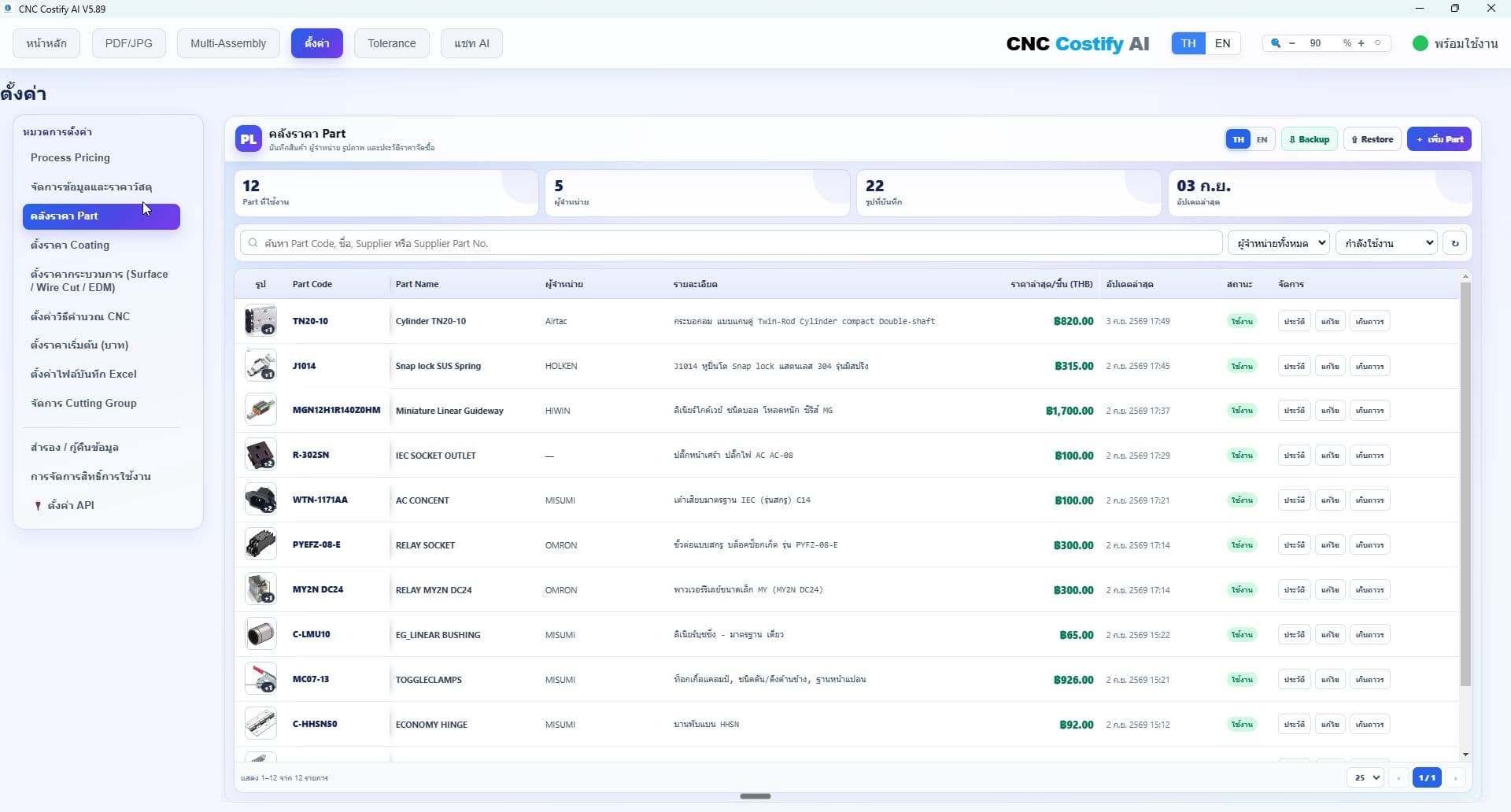
Store frequently purchased standard parts with 1–5 product images, Part code and name, price, supplier, Supplier Part No., and append-only price history.
- 1Add a partClick “Add Part”, enter its code, name, price, supplier, and at least one image, then save.
- 2Review images and historyClick the leading thumbnail to zoom or browse the gallery, and click “History” to inspect prior prices.
- 3Autofill purchase pricesPDF/JPG and Multi-Assembly use the latest price only for an exact purchasing match, without overwriting manual or MISUMI prices.
- 4Backup / RestoreBackup stores the database, images, and complete history in one .cncparts file. Restore that file to migrate or recover the library.
Pricing Settings
The "Settings" tab gathers all pricing config in one place
Coating Management
The "Coating Prices" panel supports add / edit / delete with pricing
- ➕ Add: Click → enter new coating name → set price/unit → save
- ✏️ Edit: Select coating → click → rename → existing price auto-migrates
- 🗑️ Delete: Select coating → click → confirm → removes from list & prices
Backup / Restore
Settings tab → "Backup / Restore" exports all settings as a JSON file — for transferring or team sharing
Excel Export
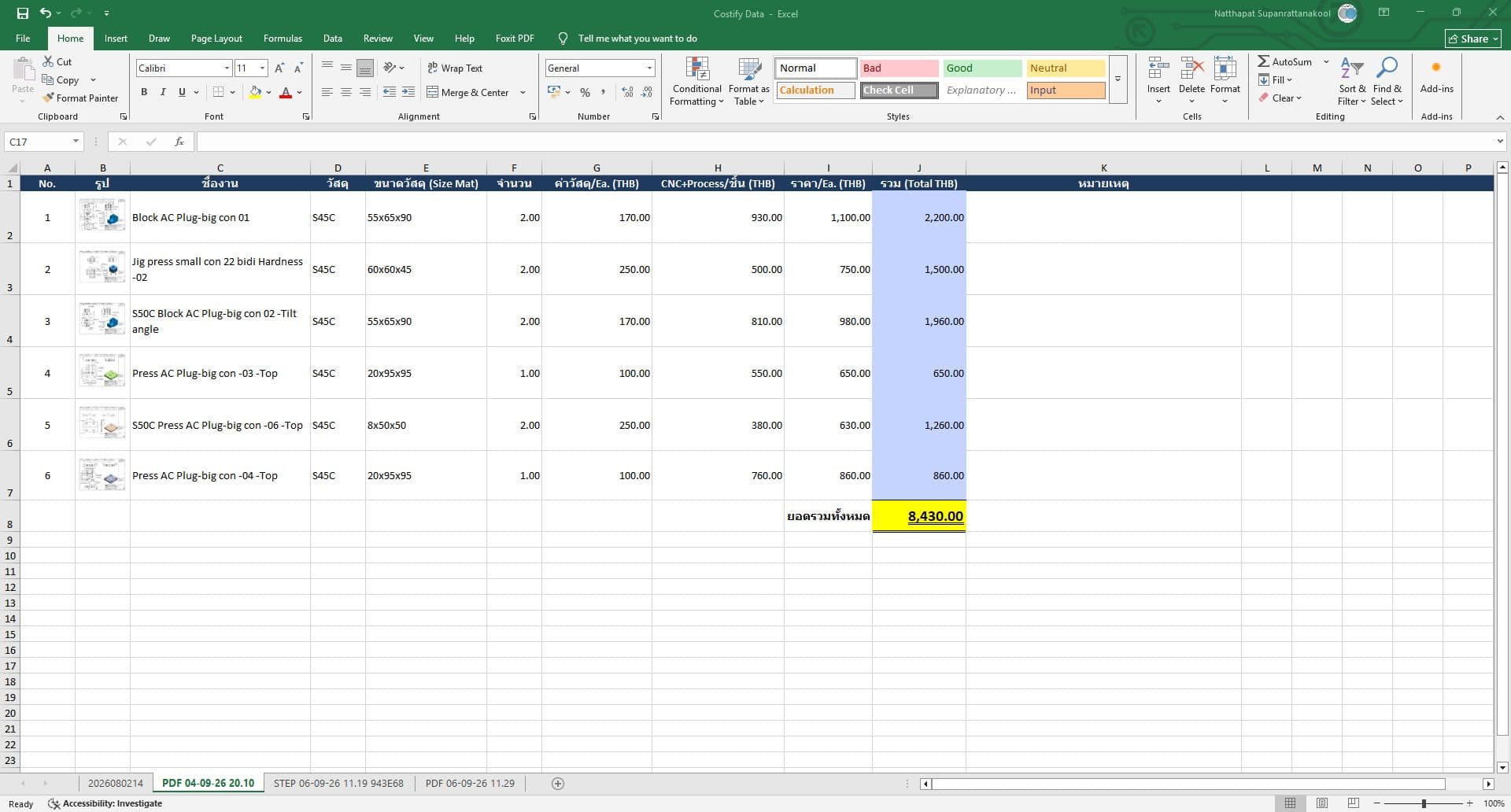
- 1Set Excel file pathSettings → "Excel file path" → choose location (e.g., D:\Costify Data.xlsx)
- 2Save from main pageCalculate, then Save into the current quote-round sheet. Loading another STEP keeps the same sheet; Start New begins a new quote round
- 3Export from PDF/JPGAfter batch analysis → "EXPORT EXCEL" → writes a 13-column table that keeps file/part/drawing identifiers and folds net CNC, setup, and every process into CNC+Process so totals match the screen
- 4Export from Multi-AssemblyThe sheet always uses 11 columns: No., Part No., job type, material, stock size, effective quantity, material/ea., CNC+Process/ea., price/ea., total, and engineering notes
AI Chat
The "AI Chat" tab lets you ask anything about materials, machining, tolerances, etc.
- • How does density of SS400 differ from S45C?
- • For HRc 60 hardness, what material should I use?
- • Hard Chrome vs Flat Chrome — what's the difference?
- • What does Tolerance H7 mean?
License Management
| Plan | Quota | Online? | Validity |
|---|---|---|---|
| Free | 15 STEP files/month | Required | Resets monthly |
| Monthly | 30 files/day | Required | 30 days |
| Yearly | Unlimited | Offline OK (.dat) | 455 days |
| Lifetime | Unlimited | Offline OK (.dat) | Lifetime |
Troubleshooting
❓ Calculate prompts for license▼
❓ license.dat import shows 'Unknown error'▼
❓ STEP file analysis fails▼
❓ AI slow or unresponsive▼
❓ Gemini timeout or PDF/JPG error▼
❓ Can a single-page or revision-suffixed drawing match STEP?▼
❓ Aluminium5083 is in the drawing but material is blank / Step 4 is gray▼
❓ Can the same part match when Drawing No. is blank?▼
❓ STEP timeout or busy response▼
❓ Can deleted files return during processing?▼
❓ Excel Export fails▼
FAQ
❓ Do I install the MISUMI extension separately?▼
❓ Does MISUMI search require a login?▼
❓ Does it download the entire MISUMI catalog?▼
❓ What is the difference between unit price and total?▼
❓ Why does the MISUMI price clear when I change quantity?▼
❓ Will a failed MISUMI search remove my existing data?▼
❓ How do I correct a wrong Part Library selection?▼
❓ Are MISUMI search and quote import the same?▼
❓ Does updating the app also update the extension?▼
❓ Does exported Excel include drawing images?▼
❓ Is there a detailed manual I can save as PDF?▼
❓ Does every feature require an AI API key?▼
❓ Where does my data go?▼
❓ Can I move machines?▼
❓ Can I share with another machine?▼
❓ Are updates free?▼
❓ Can I cancel?▼
❓ Mac / Linux support?▼
Still need help?
Our team responds to every inquiry within 24 hours